All guides
Getting started
What is Submittal Kit Create Your Workspace Your First Project Search Everything The Dashboard Help and What's New Abbreviations We UnderstandProjects & Schedule
Project Settings Schedule and MilestonesEquipment Register
Equipment Register Basics Import a BOM Equipment DocumentsParts & Library
The Parts Library Part Documents Find Datasheets The Document Library Search Inside DocumentsSubmittals
Create a Submittal Configure Sections Choose Equipment Scope Compile a Submittal O&M Manuals Submittal Numbering Cover PagesRevisions & Review
Issue a Revision Submittal Log Returned Reviews Record an External SubmittalRFIs
RFI Basics RFI Log RFI LayoutsField & QA
Punch Lists As-Built RedlinesSpecifications & Scope
Upload SpecificationsProcurement & Change Orders
Quotes and Purchase Orders Coverage and Lead Times Change Orders Budget and SOVDirectory & Team
Firms & Contacts Team & Access Personnel & CertificationsSettings & Billing
Company Identity Library Vocabulary Billing and PlansIntegrations
Connect an AgentHelp Specifications & Scope
View as MarkdownUpload Specifications
Upload the spec book, claim the sections that are yours, and work each one in place: what it asks you to submit, and what the equipment must be.
The spec book usually arrives as a thousand-page PDF, and "what do we owe on this job" is answered from memory. Upload it once and the book becomes a register that drives your Submittal Log.
Upload the book
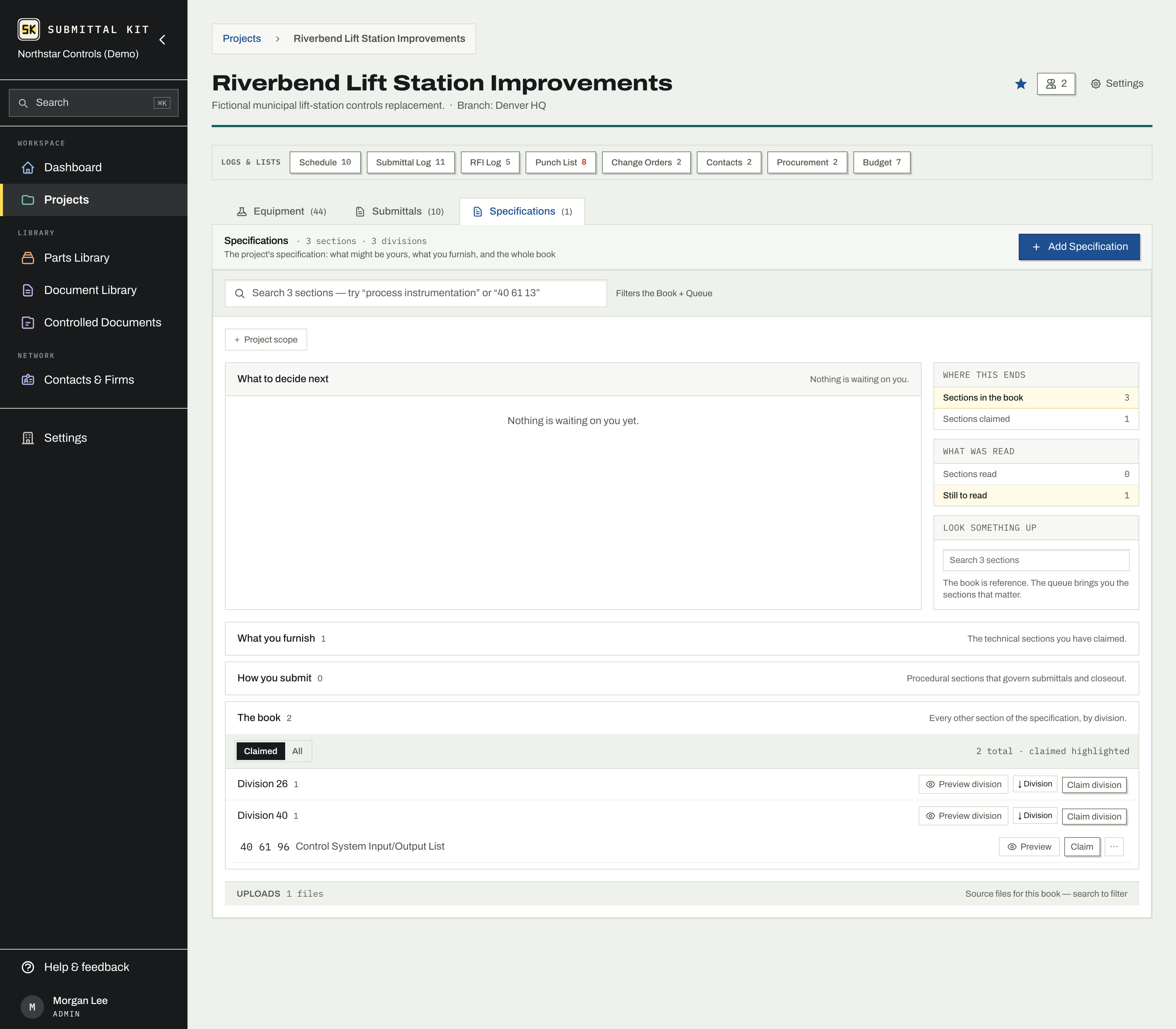
On the project's Specifications tab, choose Add Specification and drop in the PDFs. Upload the whole book at once or division by division; the title and MasterFormat section number are read from each file, and the sections roll up under their divisions automatically. A scanned book is read as well; its pages are recovered on upload so its sections work like any other.
Work one section at a time
The tab is a list of the sections you own on the left, and one section on the right. Pick a section and you get everything about it in one place: its pages, what it asks you to submit, and anything that has changed it. The list is short by design, because a project owns a handful of sections rather than the two hundred in the book.
A number beside a section means it still owes you a decision. A section that could not be read says so on itself, with the reason, rather than in a list somewhere else.
Claim what is yours
Most of a spec book belongs to other trades, so the sections that are yours come from what you provide rather than from reading it. Say what you provide on the Scope tab: tick it from your catalog, paste your scope, or upload it. Each line comes back with the section that specifies it, and those sections appear here. Nothing you do not supply is ever put in front of you.
You can still claim by hand. Open All sections to browse the whole book by division and claim a section or a whole division in one action; sections you have already decided are left alone. That is the way in for a section that specifies a system rather than a device, which no single line of supply reaches.
Answer what a section demands
A claimed section is read for what it requires you to submit, and each demand is quoted with its article reference so you can confirm it is real before acting on it. Answer them one at a time, or take the whole section at once with Create all or None of these. A section that names nine deliverables is one decision, not nine.
Record what the equipment must be
The same section also says what the furnished equipment has to be: a short-circuit current rating, a temperature rise, an enclosure type, a lens option. Read a claimed section for those and each one comes back quoted, with the article it sits at, for you to accept or decline. Nothing joins your list without you, and anything the read missed you can add by hand.
Requirements sit under the kind of component they are about, the subject: the section's own heading, such as CPU module or managed Ethernet switch. The subject bar shows which part categories it covers. The first read proposes those from the categories on your Register; add or remove one and every requirement under that subject follows. Requirements on every part in the section sit under All equipment. A subject that covers nothing on the Register says so, and the compliance check skips it.
Apply an accepted requirement to the equipment it covers, and set each one to Met, Not met, or Not confirmed. Not confirmed is where every one starts, and it is a real answer: it says nobody has checked yet, which is different from checked and fine. Record the value you actually found and point at the page that proves it, and a later reader can see what was submitted rather than only that somebody passed it.
Add a Compliance Matrix section to a submittal's recipe and all of it prints inside the package: the requirement, the value required, the spec article it came from, the equipment it applies to, and the state. The reviewer audits your checking instead of repeating it. States print as a word, so the page survives a black and white copy. Change a state and the compiled package is rebuilt, so what goes out can never disagree with what you recorded. Your states carry forward to the next revision, so a resubmittal only re-checks what changed.
Claimed sections are what the Submittal Log reads, so what you owe on the project comes from the book instead of from memory, and a For Record requirement buried in Part 1 does not surface for the first time at closeout.
- Upload the book on the Specifications tab.
- Say what you provide on the Scope tab, and check the section filed against each line.
- Claim anything else by hand from All sections.
- Open each section you own and answer what it demands.
- Record what the equipment must be, and add a Compliance Matrix to the package.
Updated Aug 20, 2026
Can't find it? support@submittalkit.com